
Q&A
EVASing Dongle Home Karaoke set (ED02)_User Manual |
◆ Instruction
*Warm Reminder: When the phone is not equipped with a phone case, please place the glue strip at the base to protect the phone from damage.
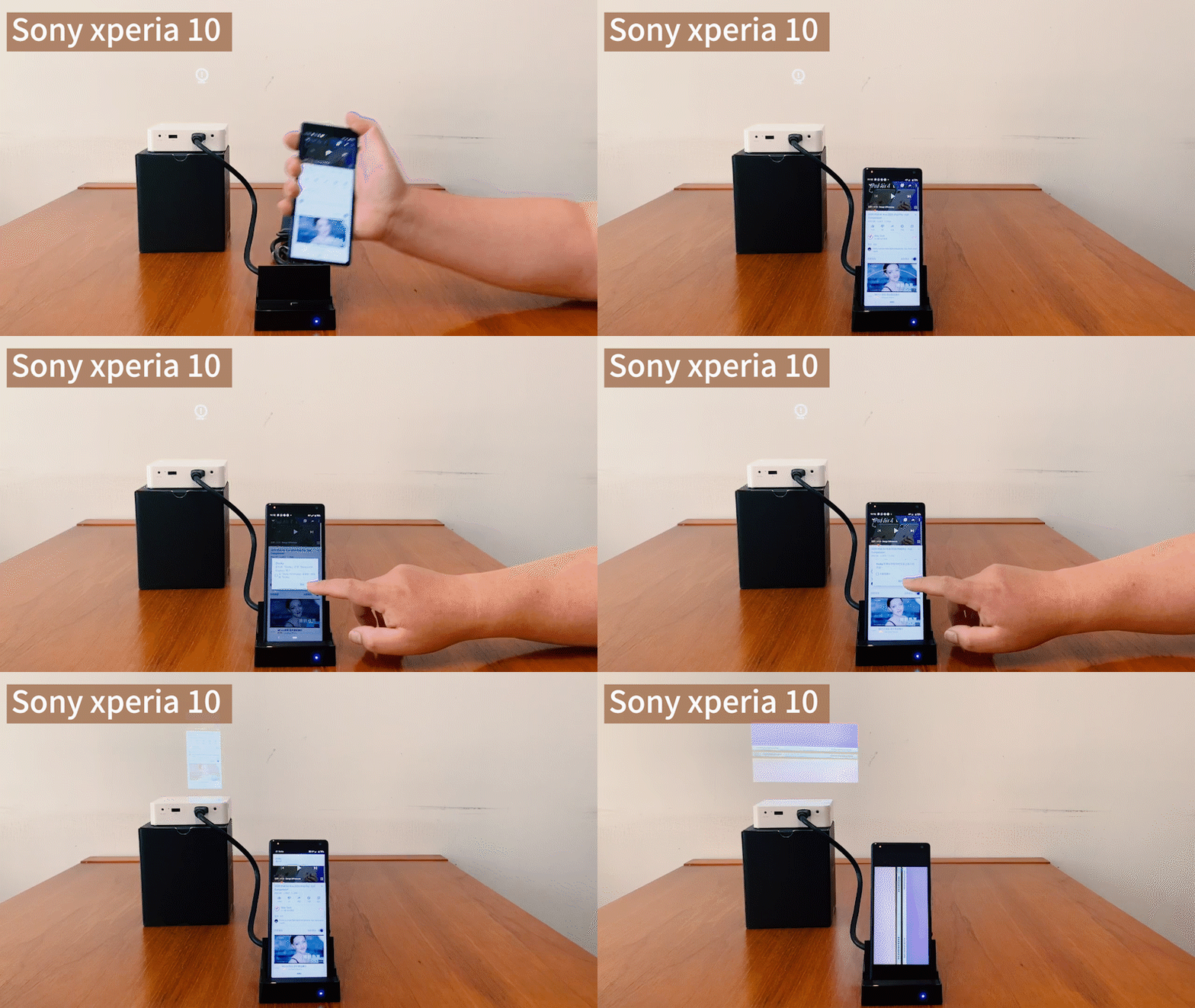
- Plug in Type-C cable to power Docky (If your phone have enough power, no additional power supply required.)
- Connect Docky to the screen(TV,projector…etc.) with HDMI cable
- Plug the phone with Type-C interface to Docky
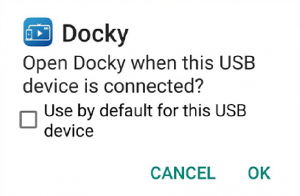
- The connection window will pop-up automatically, click”ok”
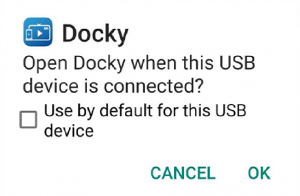
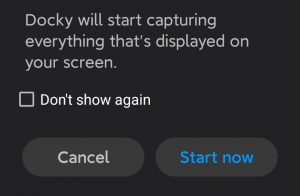
5. Docky start capturing, click”start now”. The phone screen is projected immediately, no need to do any setting in APP.
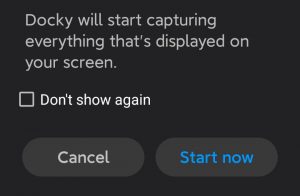
(When USB/HDMI/AUX interface is connected, the phone screen will automatically ask whether to connect. Just click ”ok” and ”start now”.)
★Different setting for specifical phone module
- HUAWEI series
(1)Plug in, the setting window will pop-up, click ”go to settings”
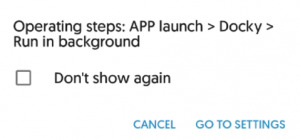
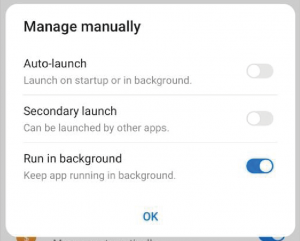
(2)Go to settings >> APP launch >> Manage automatically >> find Docky >> switch off Docky
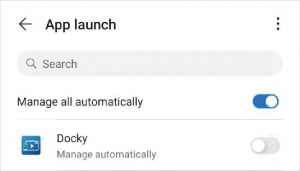
(3)The manual mode pop-up, switch on ”run in background”
2.OPPO/Vivo series
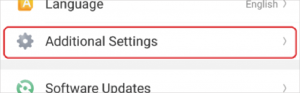
(1)Go to “setting” >> “Additional settings”
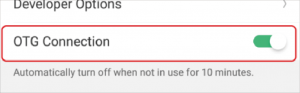
(2) Switch on “OTG connection〞
(3) The connection window will pop-up automatically, click”ok”
(4)Docky start capturing, click”start now”. The phone screen is projected immediately, no need to do any setting in APP.
*Mouse and keyboard cannot use Bluetooth connection, they must be wired or plugged the receiver into USB3.0 port to be used wirelessly.
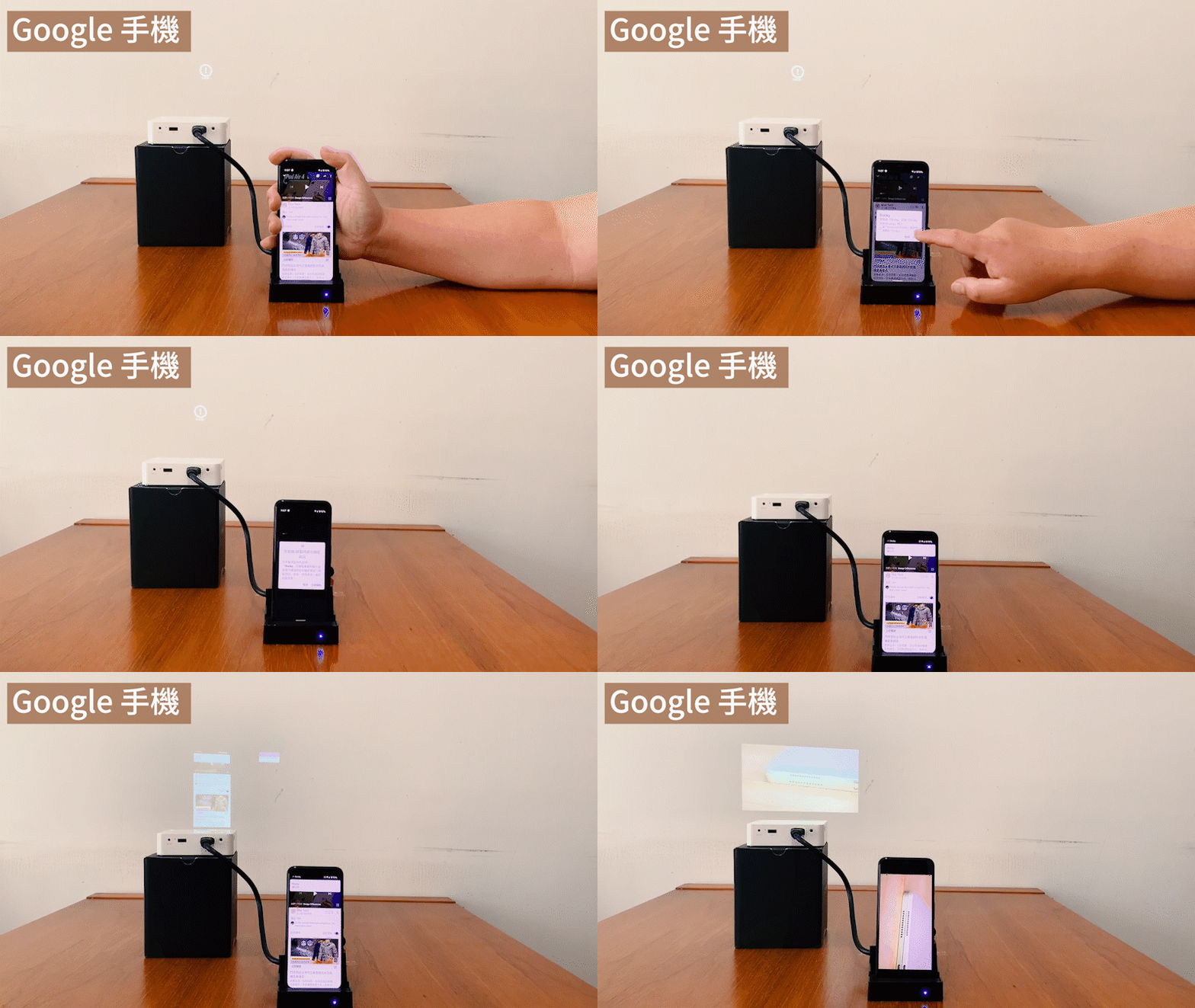
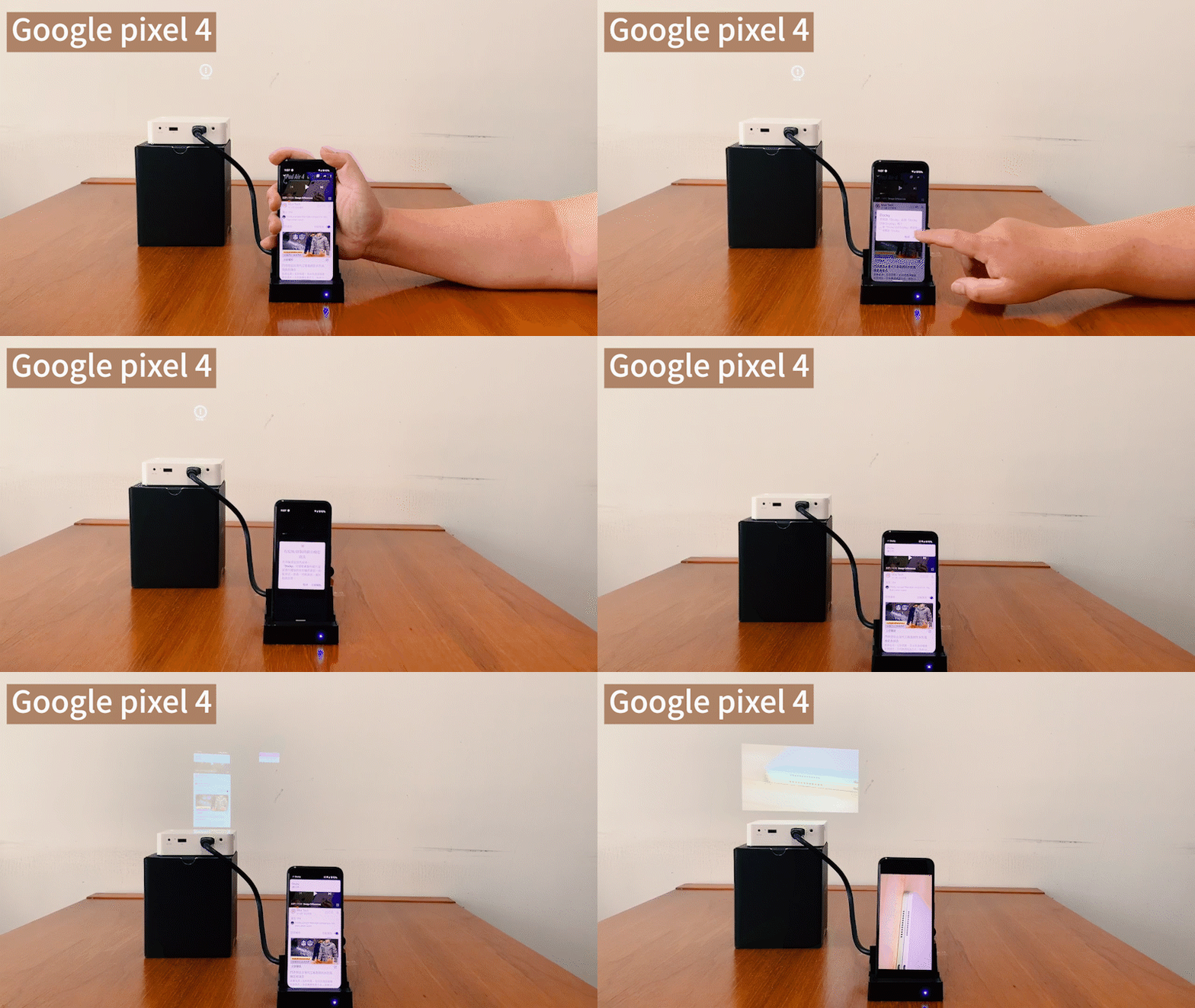
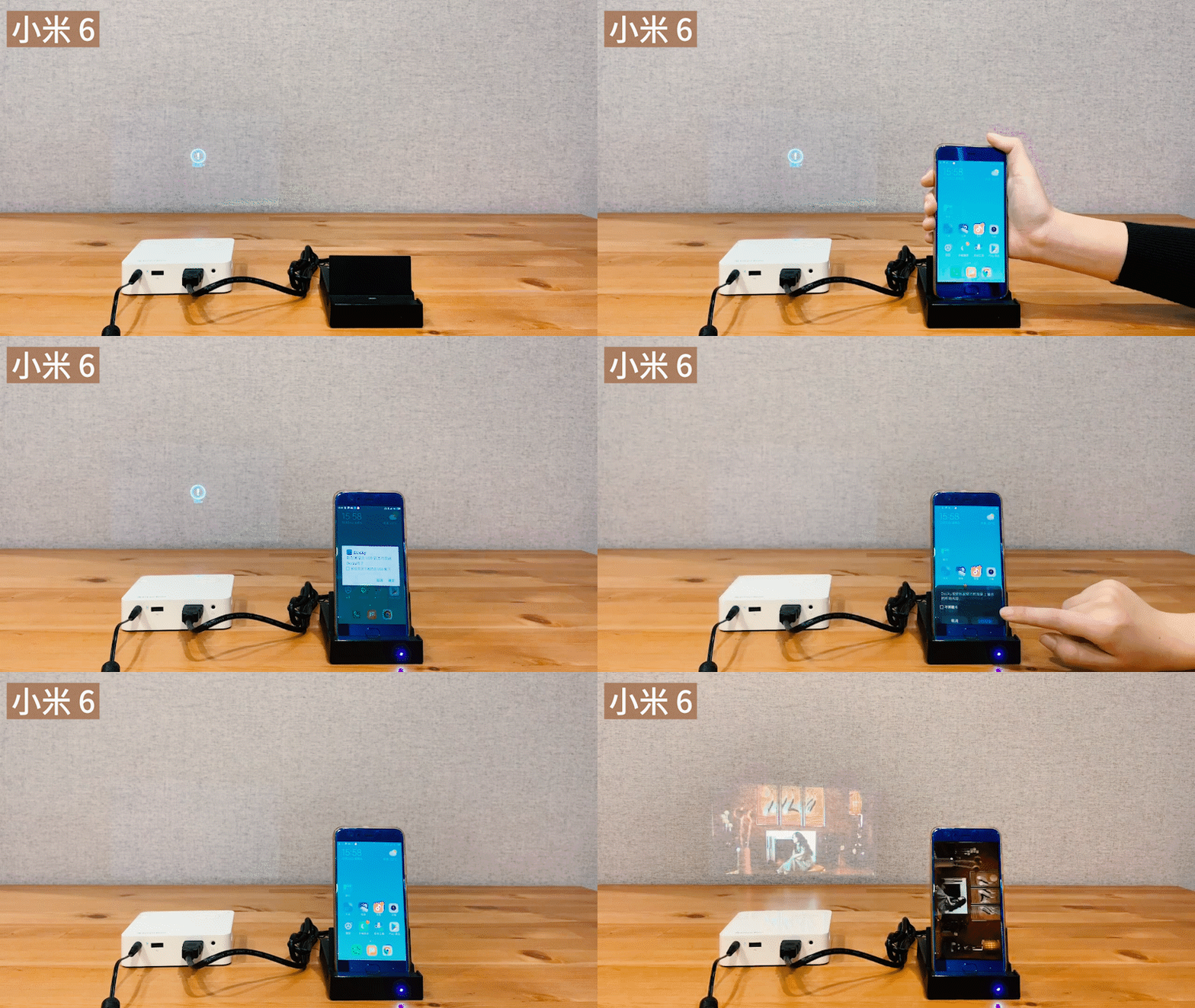
◆ Use of various brands of mobile phones
◆ Applicable mobile phone model
| Label | model |
|---|---|
| 1.HUAWEI | P10/P20/P20 Pro/P30/P30 Pro/P40/P40 Pro/P40 Pro 5G Mate 9/10/20/20X/20 Pro/30 5G/30 Pro 5G/30 RS/30/XS,MatePad Pro M6 Nova 5i/5G/5Z/5 Pro/6 5G/6 SE/7 5G/7 SE changxiang 10S/10Plus/Z 5GPlay4 5G/Play4 Pro/Play4T Pro/V20/V30 5G/V30 honor 8/Pro/30/30S/30 Pro/20 Lite/20/9X/9X Pro/X10 |
| 2.OPPO | Reno 2/2Z/3 5G/3 Pro 5G/3 5G/4/4 Pro/Ace Find X2/X2 Pro/X2 Pro A11/11X/A52/A91/A92/A92S ACE2 K5 |
| 3.Vivo | X30/X30 Pro/X50/X50 Pro/X50 Pro+ S5/S6 Y9s/Y50 NEX3/3S IQOO 5 /IQOO 5 Pro |
| 4.Mi |
Mi CC9 Pro/CC9/10/10 Pro |
| 5.Samsung | Galaxy S10+/S20/S20 Ultra 5G/Note8/Note10/A50s/A70s/A71/A90 5G/Z Flip |
| 6.Meizu | Meizu 16T/17/17 Pro/17 Pro 5G/16TH Plus/16S Pro/16X/16XS/X8/MX6/V8/E3 |
| 7.LG | V60/k51/g8x/velvet |
| 8.Sony | Xperia 5II/sony xperia 1/sony xperia 10II/10 |
| 9.Lenovo | K9/K10/z6 pro/Z5s |
| 10.realme | realme 5i/realme narzo 10/realme 7 |
| 11.Google | Pixel 4/Pixel 4a/Pixel 3a |
| 12.nubia | redmagic5G |
| 13.Tencent | Blackshark 3S/3 |
| 14.onePlus | 3/6/6T/7T/7pro/8 pro 8T 5G |
Latest Version-2.1.17.0103 Date:2020-10-13

Can not find a common platform?
Docky – 2.1.17.0103

*Docky App Only supports for Android users.