AVA OnCollab A10
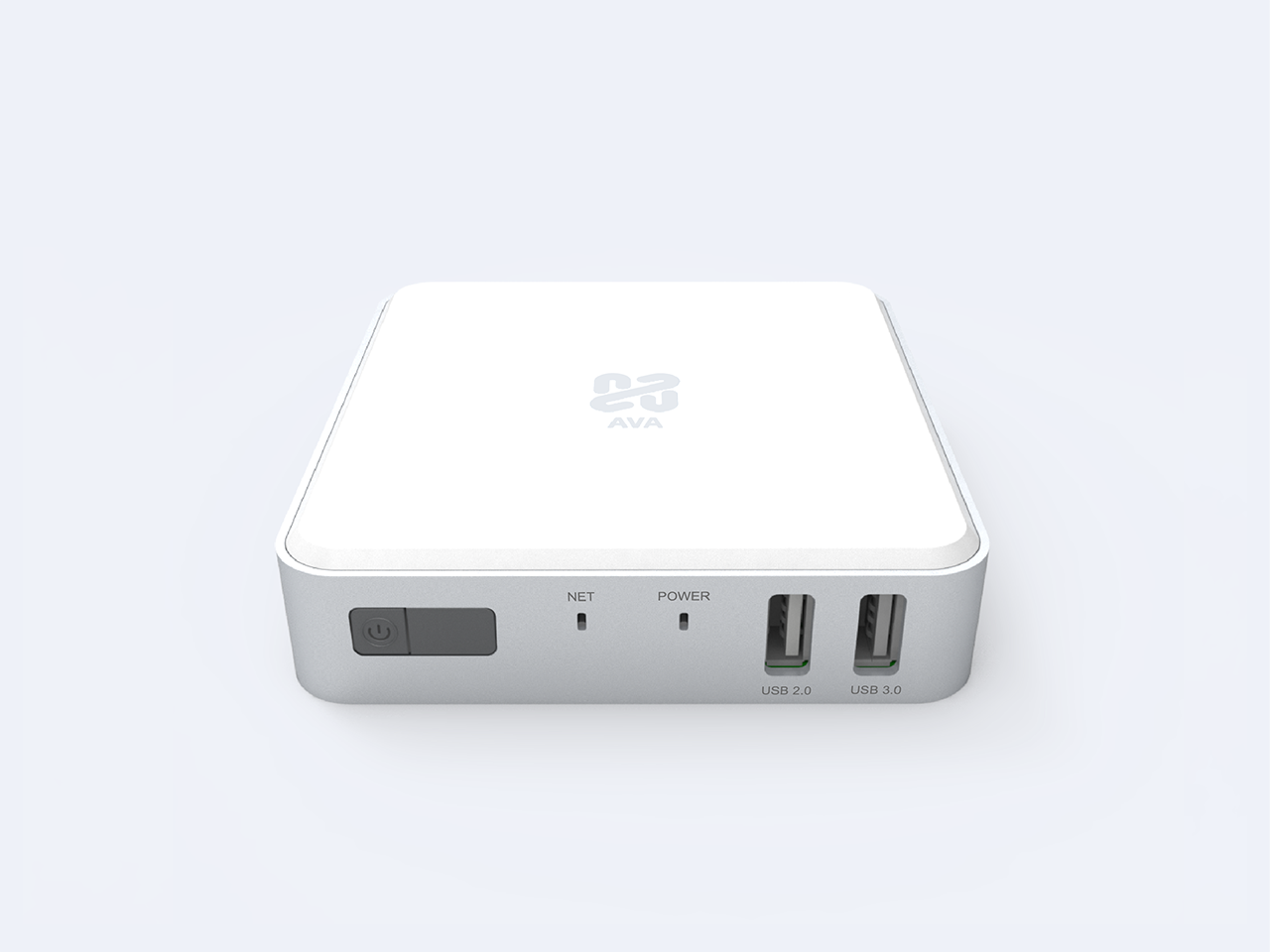
AVA OnCollab A10 Wireless Presentation Receiver
OnCollab A10
OnColla
b A10Streamline your Workspace
A10
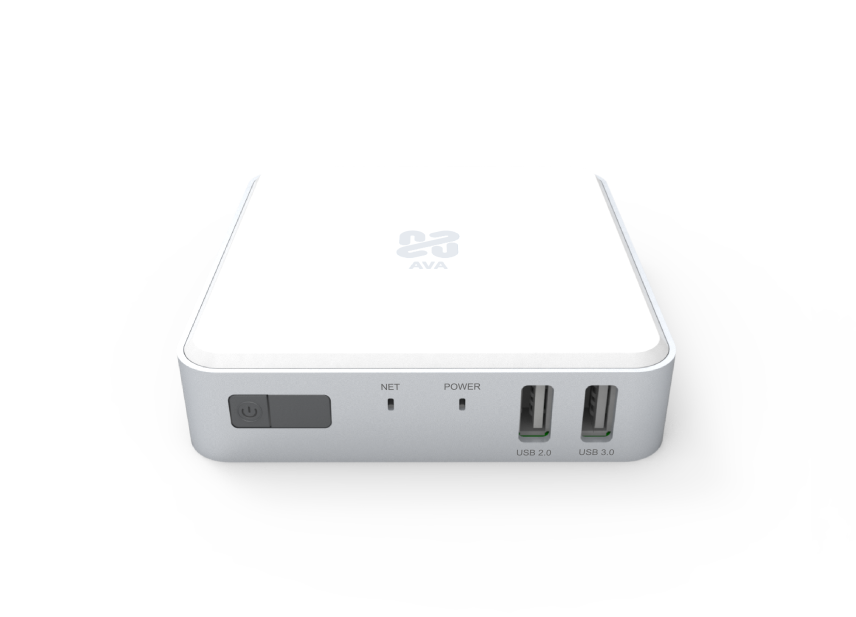

A10
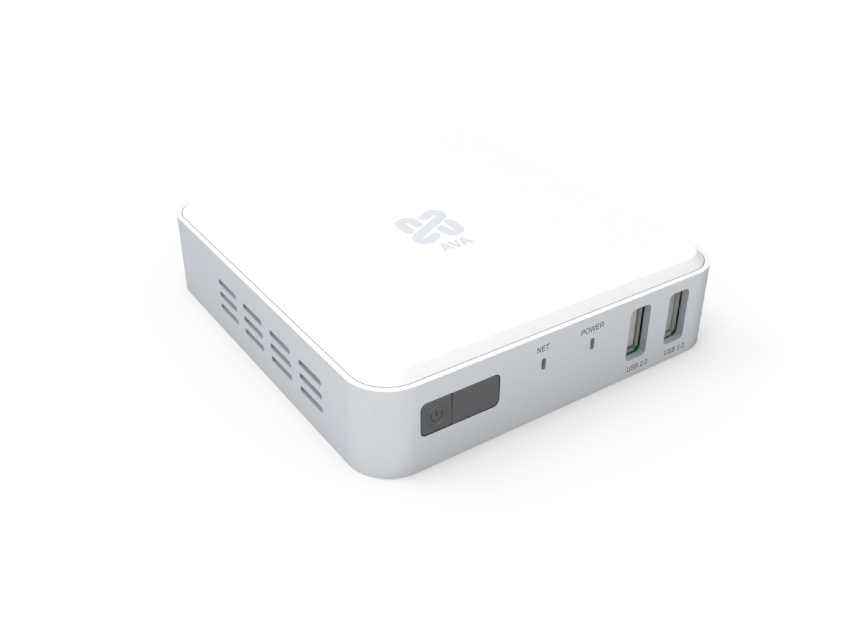
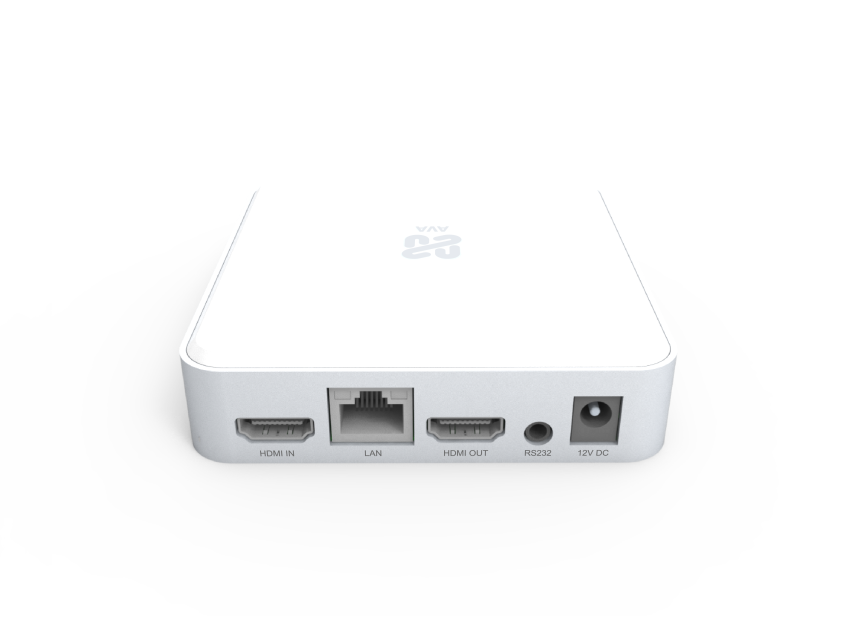
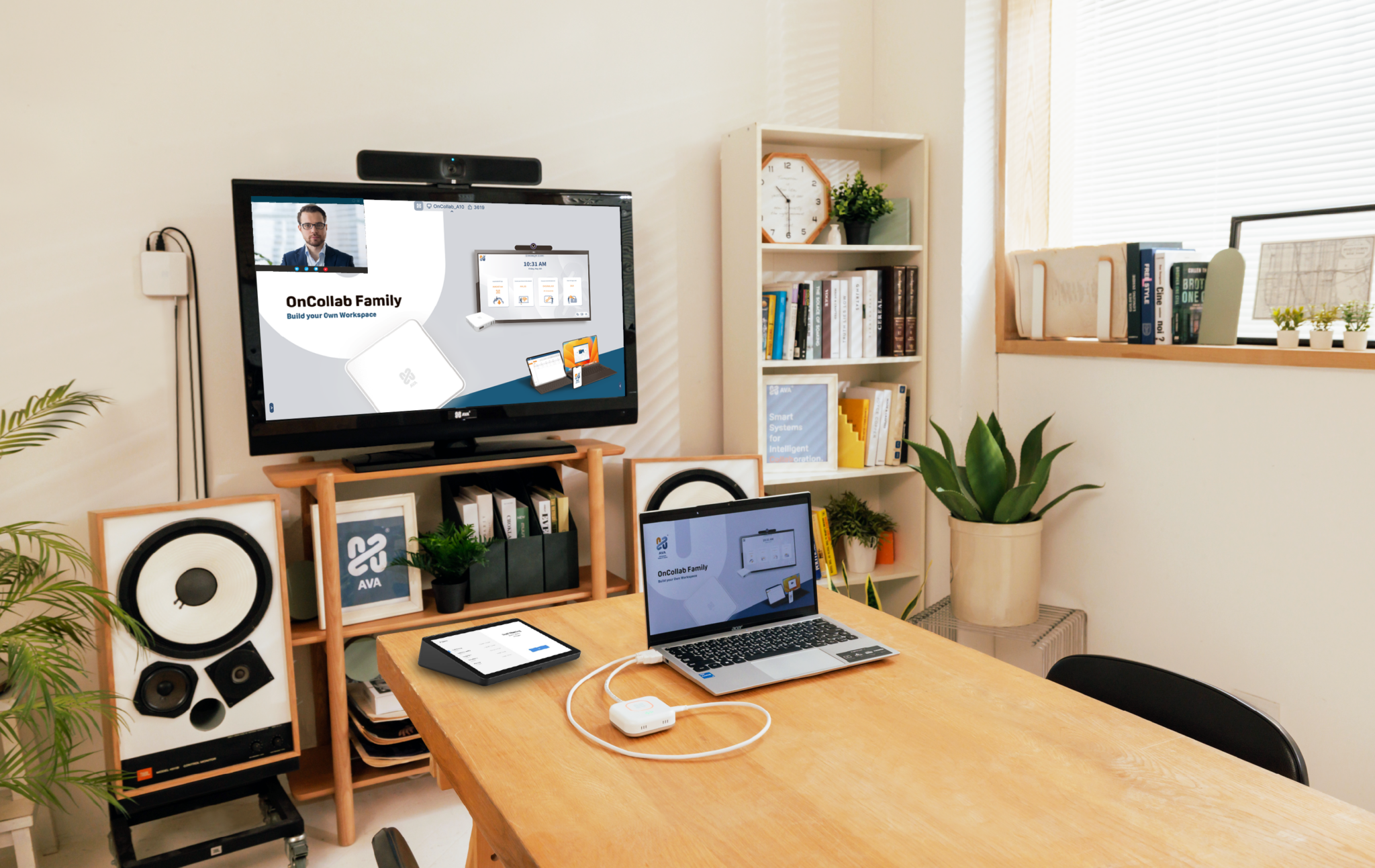
A10 is a feature-rich hardware based receiver that is both versatile, and simple to set-up. With a focus on being extremely easy to use, A10 is a great choice for a device that will allows you to cast your screen and holds regular meetings and classrooms reliably.
Perfect for


C/H


AT-C / AT-H
AT-C & AT-H are an accessory device for our hardware receivers. Our AT-C & AT-H delivers the true speedy one click casting experience. Simply click the button to cast your screen seamlessly. Our OnCollab AT comes in 2 versions, AT-C with a USB-C connection, and AT-H for an HDMI connection, giving you more freedom to build your workspace.
AT-C / AT-H Lite
AT-C & AT-H also comes in the Lite version, where it has all the same functionality of the AT-C & AT-H, except for the video conference device light indicators. A true one click casting solution.
Multi Standard Integration with BYOM and MTR
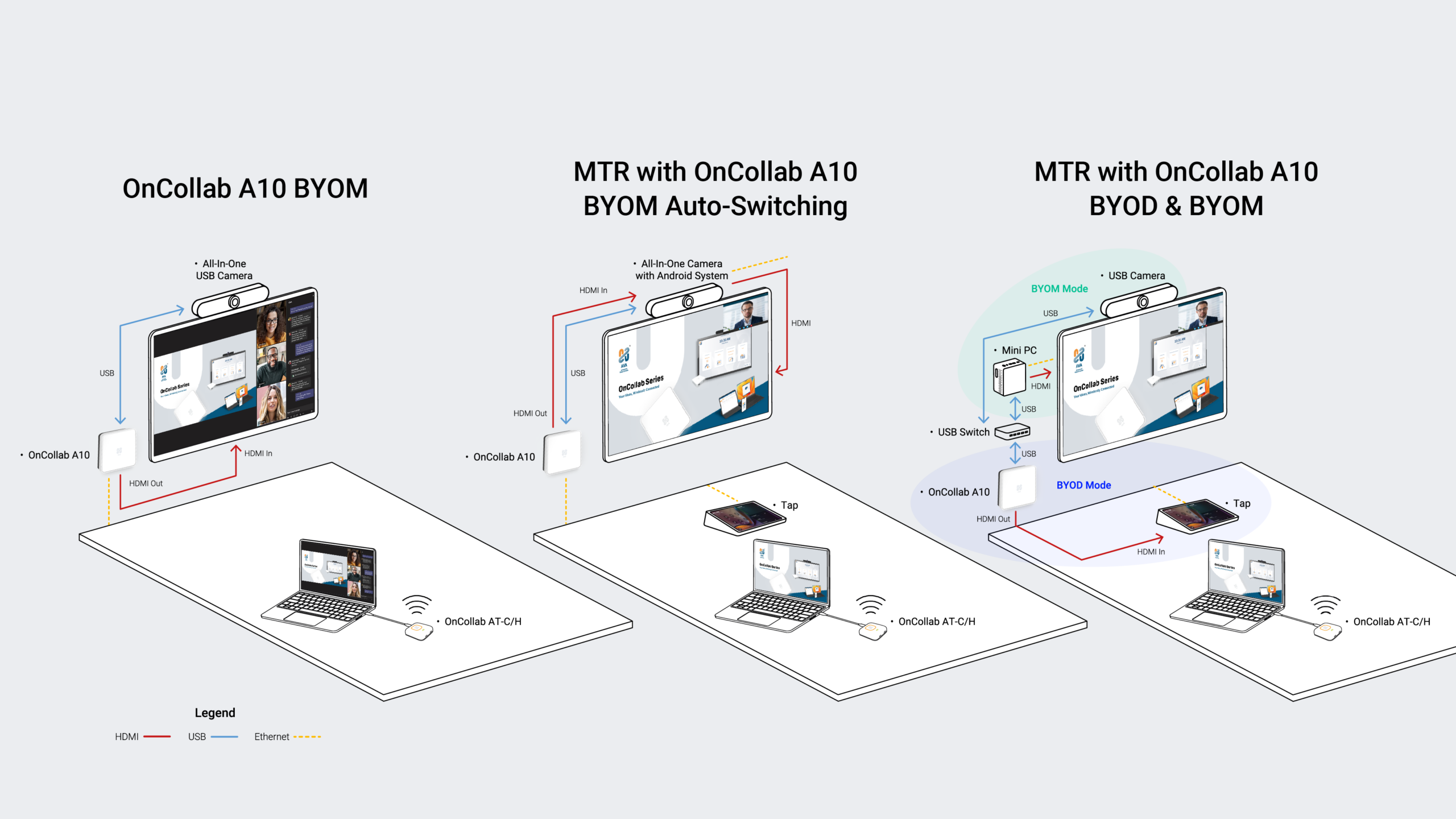
The A10 is now fully compatible with Microsoft Teams Rooms (MTR), the industry-leading standard for meetings and collaboration. With its wireless auto-switching feature, the A10 enables seamless transitions between BYOM and MTR modes while maximizing the use of your webcam and peripherals.
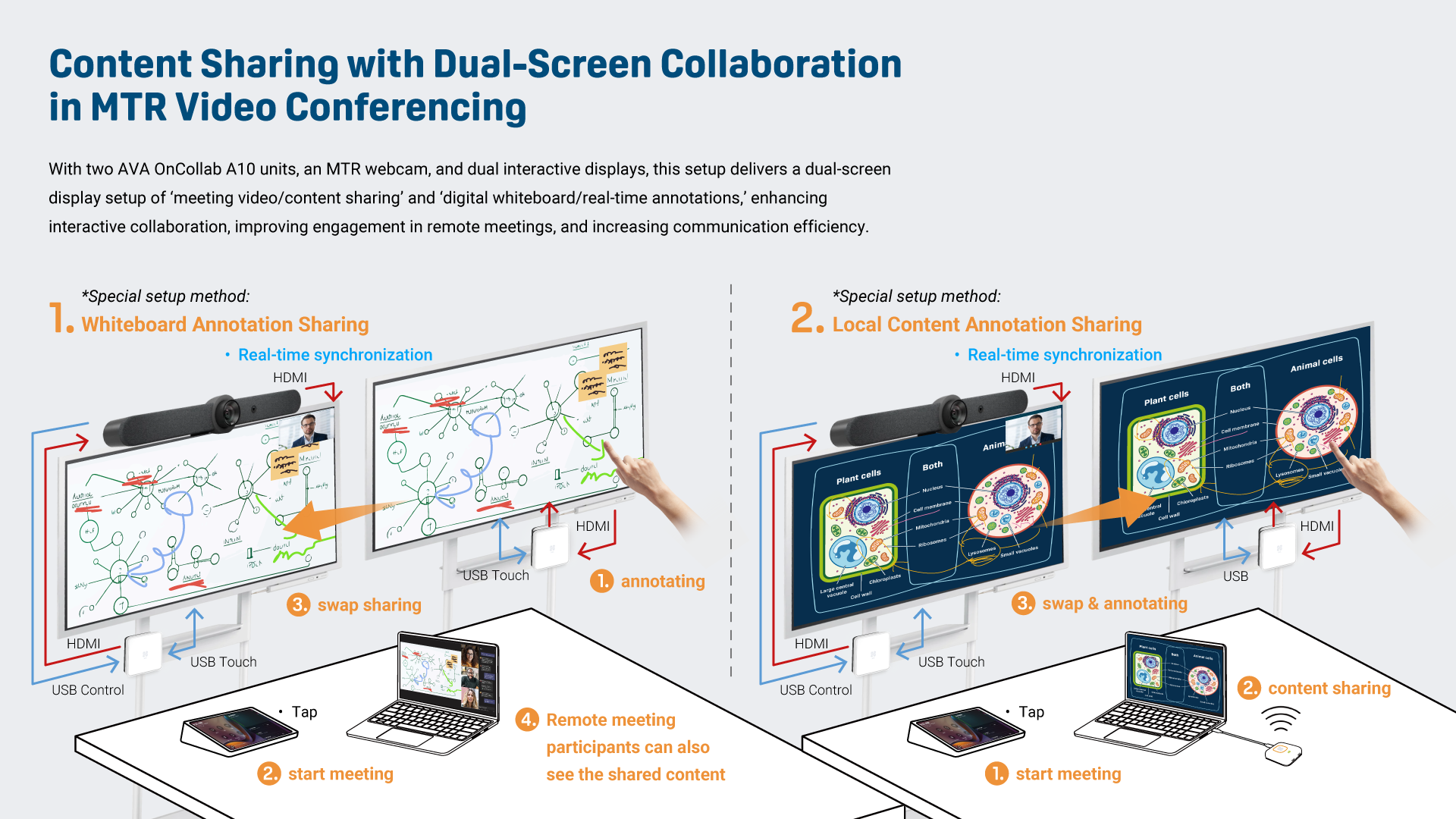
New Dual-Screen Collaboration Feature and Gesture Control
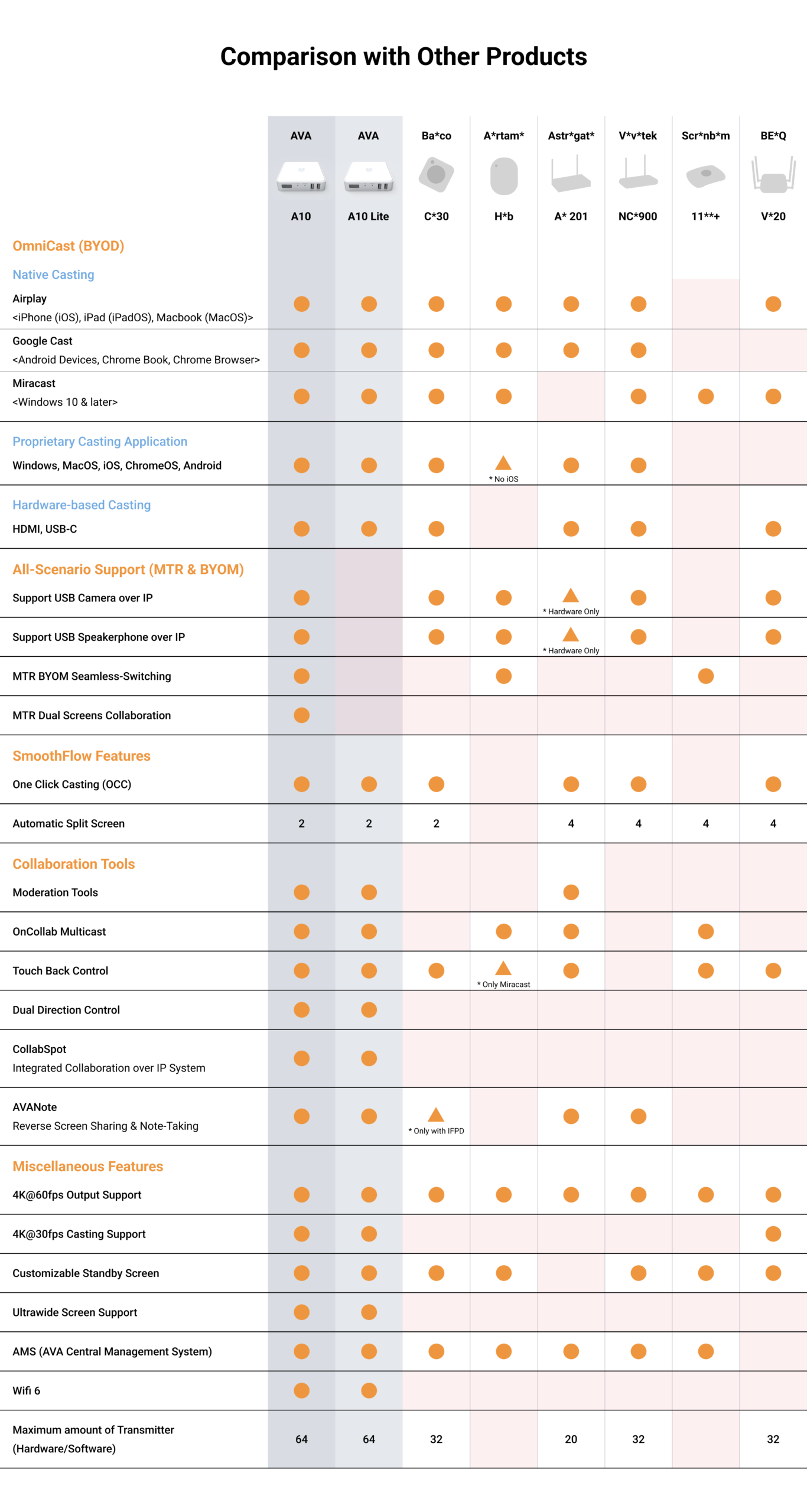
WHY OnCollab A10?





AVA OnCollab A10 FAQ
1. Why can't I find my device in the AVACAST app?
Tap the arrow in the upper-right corner of the screen to refresh the list. Make sure your personal device and the OnCollab unit are connected to the same network.
2. How do I change the network the AVACAST app connects to?
AVACAST uses the network your personal device is currently connected to by default. Simply switch the network on your personal device to change the network AVACAST uses.
3. Where can I find my OnCollab unit's IP address?
The IP address is displayed at the bottom of the screen.
4. Can I change the name of my personal device in the AVACAST app?
Yes. Open the app and go to Settings. Under the "General" option, you'll find the setting to change your personal device's name.
5. USB camera models supported for BYOM:
| AVer – CAM550 | AVer – VB342+ |
| AVer – TR2XX/TR3XX/PTZ2XX/PTZ3XXV2 series | AVer – VB342 Pro |
| AVer – CAM130 | AVer – VB350 |
| AVer – CAM520 Pro2 | AVer – VB130 |
| AVer – CAM520 Pro3 | AVer – A30 |
| AVer – CAM570 | AVer – VC520 Pro |
| AVer – DL10 | AVer – VC520 Pro 2 |
| AVer – DL30 | AVer – VC550 |
| AVer – PTZ310 series/PTZ330series | AVer – FONE540 |
| AVer – TR3XX/PTC3XX series | Aver – Livestreamer Cam313 |
| BOSE – VB1 | Jabra – PanaCast |
| Bose VB-S | Jabra – PanaCast 20 |
| Cisco Room Bar | Jabra – PanaCast 50 |
| Crestron – UC-SB-1-CAM | i3 – i3CAMERA FHD |
| i3 – i3CAMERA Pro | Logitech – Rally Bar |
| Logitech – Brio | Logitech – MeetUp |
| Logitech – C505 | Logitech – Connect |
| Logitech – C920 | Logitech – Logi Dock |
| Logitech – C9222x | Logitech – BCC950 |
| Logitech – C925e | Logitech – Group |
| Logitech Meetup 2 | Logitech – Rally Bar Mini |
| Logitech – PTZ PRO2 | Lumens – VC-B2U |
| Logitech – Rally Bar Huddle | Lumens – VC-B30U |
| Logitech – Rally Plus | Lumens – VC-B30U,V01 |
| Lumens – DC-F20 | Lumens – VC-BC301P |
| Lumens – DC-F20 | Lumens – VC-R30 |
| Lumens – DC-F80 | Lumens – VC-R30,V01 |
| Lumens – DC-W80 | Lumens – VC-TR1 |
| Lumens – DC125 | Lumens – VC-TR30 |
| Lumens – DC132U | Lumens – VC-TR40 |
| Lumens – DC136 | Lumens – VC-TR60 |
| Lumens – DC172 | Lumens – VC-TR70 |
| Lumens – DC193 | Lumens – MS-10, MS-10S |
| Lumens – PS753 | Lumens – VC-A71SN |
| Lumens – VC-A53 | Lumens – VC-A71P-HN |
| Lumens – VC-A62 | Sony – SRG-X40UH |
| Lumens – VC-A71P | Sony – SRG-XP1 |
| Lumens – VC-B10U | Yamaha ClearOne |
| Lumens – VC-B11U | Yamaha – CS-800 |
| Poly – E70 | Yamaha – CS-700 |
| Poly – TRIO 8800 | Yealink – Meeting Bar A20 |
| Poly – Studio X32 | Yealink – UVC86 |
| Poly – Studio X52 | Yealink – UVC86 |
| Poly – Studio X70 | Yealink – UVC86 |
| Poly – Studio P15 | Yealink – UVC84 |
| Poly – Studio V12 | Yealink – UVC30 |
OnCollab A10
OnColla
b A10Streamline your Workspace
A10
A10
A10 is a feature-rich hardware based receiver that is both versatile, and simple to set-up. With a focus on being extremely easy to use, A10 is a great choice for a device that will allows you to cast your screen and holds regular meetings and classrooms reliably.
A10 Lite
A10 also comes in the Lite version, where it has all the same functionality of the A10, except for the USB Camera over IP and USB Microphone over IP. The perfect solution for those looking for a simple, yet powerful collaboration solution.
Perfect for
OnCollab AT-C / AT-H
A True One Click Casting Experience
C/H
AT-C / AT-H
AT-C & AT-H are an accessory device for our hardware receivers. Our AT-C & AT-H delivers the true speedy one click casting experience. Simply click the button to cast your screen seamlessly. Our OnCollab AT comes in 2 versions, AT-C with a USB-C connection, and AT-H for an HDMI connection, giving you more freedom to build your workspace.
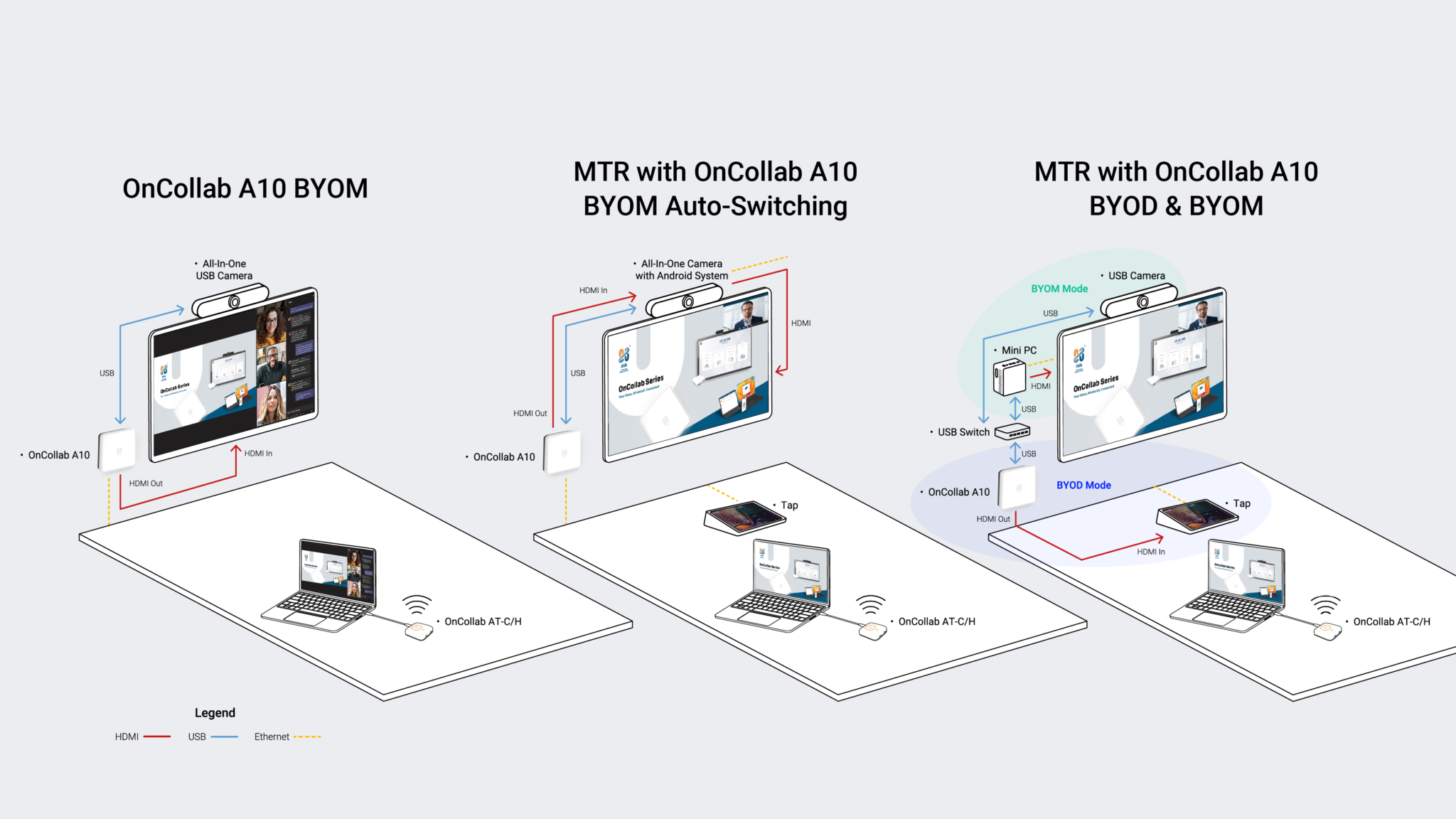
Multi Standard Integration with BYOM and MTR
The A10 is now fully compatible with Microsoft Teams Rooms (MTR), the industry-leading standard for meetings and collaboration. With its wireless auto-switching feature, the A10 enables seamless transitions between BYOM and MTR modes while maximizing the use of your webcam and peripherals.
Supporting both BYOM and MTR, the A10 delivers a fully wireless meeting and collaboration experience
with exceptional performance and flexibility.
New Dual-Screen Collaboration Feature and Gesture Control
WHY OnCollab A10?
AVA OnCollab A10 FAQ
1. Why can't I find my device in the AVACAST app?
Tap the arrow in the upper-right corner of the screen to refresh the list. Make sure your personal device and the OnCollab unit are connected to the same network.
2. How do I change the network the AVACAST app connects to?
AVACAST uses the network your personal device is currently connected to by default. Simply switch the network on your personal device to change the network AVACAST uses.
3. Where can I find my OnCollab unit's IP address?
The IP address is displayed at the bottom of the screen.
4. Can I change the name of my personal device in the AVACAST app?
Yes. Open the app and go to Settings. Under the "General" option, you'll find the setting to change your personal device's name.
5. USB camera models supported for BYOM:
| AVer – CAM550 | AVer – VB342+ |
| AVer – TR2XX/TR3XX/PTZ2XX/PTZ3XXV2 series | AVer – VB342 Pro |
| AVer – CAM130 | AVer – VB350 |
| AVer – CAM520 Pro2 | AVer – VB130 |
| AVer – CAM520 Pro3 | AVer – A30 |
| AVer – CAM570 | AVer – VC520 Pro |
| AVer – DL10 | AVer – VC520 Pro 2 |
| AVer – DL30 | AVer – VC550 |
| AVer – PTZ310 series/PTZ330series | AVer – FONE540 |
| AVer – TR3XX/PTC3XX series | Aver – Livestreamer Cam313 |
| BOSE – VB1 | Jabra – PanaCast |
| Bose VB-S | Jabra – PanaCast 20 |
| Cisco Room Bar | Jabra – PanaCast 50 |
| Crestron – UC-SB-1-CAM | i3 – i3CAMERA FHD |
| i3 – i3CAMERA Pro | Logitech – Rally Bar |
| Logitech – Brio | Logitech – MeetUp |
| Logitech – C505 | Logitech – Connect |
| Logitech – C920 | Logitech – Logi Dock |
| Logitech – C9222x | Logitech – BCC950 |
| Logitech – C925e | Logitech – Group |
| Logitech Meetup 2 | Logitech – Rally Bar Mini |
| Logitech – PTZ PRO2 | Lumens – VC-B2U |
| Logitech – Rally Bar Huddle | Lumens – VC-B30U |
| Logitech – Rally Plus | Lumens – VC-B30U,V01 |
| Lumens – DC-F20 | Lumens – VC-BC301P |
| Lumens – DC-F20 | Lumens – VC-R30 |
| Lumens – DC-F80 | Lumens – VC-R30,V01 |
| Lumens – DC-W80 | Lumens – VC-TR1 |
| Lumens – DC125 | Lumens – VC-TR30 |
| Lumens – DC132U | Lumens – VC-TR40 |
| Lumens – DC136 | Lumens – VC-TR60 |
| Lumens – DC172 | Lumens – VC-TR70 |
| Lumens – DC193 | Lumens – MS-10, MS-10S |
| Lumens – PS753 | Lumens – VC-A71SN |
| Lumens – VC-A53 | Lumens – VC-A71P-HN |
| Lumens – VC-A62 | Sony – SRG-X40UH |
| Lumens – VC-A71P | Sony – SRG-XP1 |
| Lumens – VC-B10U | Yamaha ClearOne |
| Lumens – VC-B11U | Yamaha – CS-800 |
| Poly – E70 | Yamaha – CS-700 |
| Poly – TRIO 8800 | Yealink – Meeting Bar A20 |
| Poly – Studio X32 | Yealink – UVC86 |
| Poly – Studio X52 | Yealink – UVC86 |
| Poly – Studio X70 | Yealink – UVC86 |
| Poly – Studio P15 | Yealink – UVC84 |
| Poly – Studio V12 | Yealink – UVC30 |
OnCollab A10
| Screen Connections | HDMI |
| Output Resolutions | HDMI Up to 4K60Hz |
| Connections | USB 3.0 x 1 USB 2.0 x 2 Ethernet x 1 |
| Wireless | IEEE 802.11a/b/g/n/ac/ax, 2X2 MIMO |
| Power consumption | DC 12V 2A |
| Device Dimensions | Length 100mm x Width 106mm x Height 25mm |
| Net Weight | 780g |
OnCollab AT-C / AT-H
| Output Resolutions | 4K30Hz |
| Connections | AT-C:USB-C 3.0 AT-H:HDMI, USB-A 2.0 |
| Wireless | WIFI 6 IEEE 802.11ax |
| Power consumption | 5V 1.2A |
| Device Dimensions | Length 70mm x Width 70 mm x Height 24mm |
*Data shown above is subject to change.
| name | download |
|---|---|
| AVA Oncollab A10 DM |  |
| AVA Oncollab A10 Lite DM | |
| AVA Oncollab Quick Start Guide | |
| AT-C-AT-H-Quick-Start-Guide | |
| AT-C-AT-H-Lite-Quick-Start-Guide | |